
Software & Development Tools
C-Motion® Language & Pro-Motion® Software
Overview
PMD provides two core software tools that support motion control system development and field-side setup and tuning.
The C-Motion® Language
The C-Motion® language is PMD's core software asset, saving years of engineering development time. The same motion-layer interface is used identically from 1-axis up to 110-axis systems, so when the motor type (brushless DC, brush DC, step) or system scale changes, only the hardware needs to be swapped — the software (application code) can be reused as-is.
- C-language motion control SDK that communicates with PMD motion control ICs/drives, with source code provided
- Human-readable commands such as SetPosition, SetVelocity, SetProfileMode, GetCommandVelocity
- Integrates with C/C++ and .NET (C#) applications
- Multi-IC communication support
- Supports parallel, serial, CAN2.0, SPI, Ethernet, and other interfaces
- Axis virtualization support
- Windows 32/64-bit support
- A common motion language that applies identically across 1–110-axis systems — scale by swapping hardware, reuse application code
Pro-Motion® Configuration Software
- Windows-based exerciser and data-capture program for configuring and testing motion systems
- Step-by-step configuration through an axis setup wizard
- Real-time motion oscilloscope visualization
- Position loop, current loop, and field-oriented controller (FOC) tuning
- Frequency-based servo response analysis
- Unit conversion tools
- Multi-protocol support: Ethernet, SPI, PCI bus, serial, CANbus
- Windows 32/64-bit support
How Portescap Motors Are Actually, Conveniently Controlled — the Axis Wizard
According to the jointly published Portescap/PMD Portescap Motor Application Development Kit User Manual, actual setup is completed simply by following the Pro-Motion® Axis Wizard screens in order, without writing a single line of code.
- Connect via a USB–DB9 serial cable and Pro-Motion automatically detects the port.
- On the Motor Selection screen, simply pick the Portescap model name matching the connected motor from the list. The manual lists pre-registered examples such as 22ECT48 10B 23 01 (with and without encoder), 30ECT64 10B 7, 40ECP44 8 7, 45ECF22 8B 25, and B0912N1010 — selecting one automatically applies pre-tuned control parameters for that model.
- The Hall Signal Test step briefly moves the motor to automatically diagnose whether the Hall sensor wiring is correct, and automatically inverts the signal to correct for reversed wiring order.
- The Motor Output Test step likewise checks rotation direction, and the system self-corrects if the direction is opposite of what's expected.
- On the Commutation Mode screen, simply choose the method suited to the motor's characteristics between encoder-based (smoother sinusoidal drive) and Hall-sensor-based (6-step drive).
- Finally, on the Motor Control Mode screen, selecting the control method suited to the application — Voltage, Torque Control, or Position & Velocity Control — completes setup.
In other words, after wiring the motor, just a few clicks bring a single axis to stable, closed-loop control — even without specialized motion control expertise.
A Screen That Shows the Magellan IC's Control Structure Directly — the Axis Control Window
The Axis Control Window displays the actual control flow inside the Magellan® IC (Trajectory → Position Loop → Motor Control → Current Loop → Motor Output) as a clickable block diagram, right on screen. Instead of handling register values directly, engineers configure control parameters by clicking the desired block (trajectory generation, position loop, drive safety settings, etc.) and entering values in the dialog that appears. The active blocks and arrows change in real time depending on the control mode (voltage/torque/position & velocity), making it easy to see at a glance which control stage is actually running.
Tuning Performance Without External Test Equipment — Trace & the Motion Oscilloscope
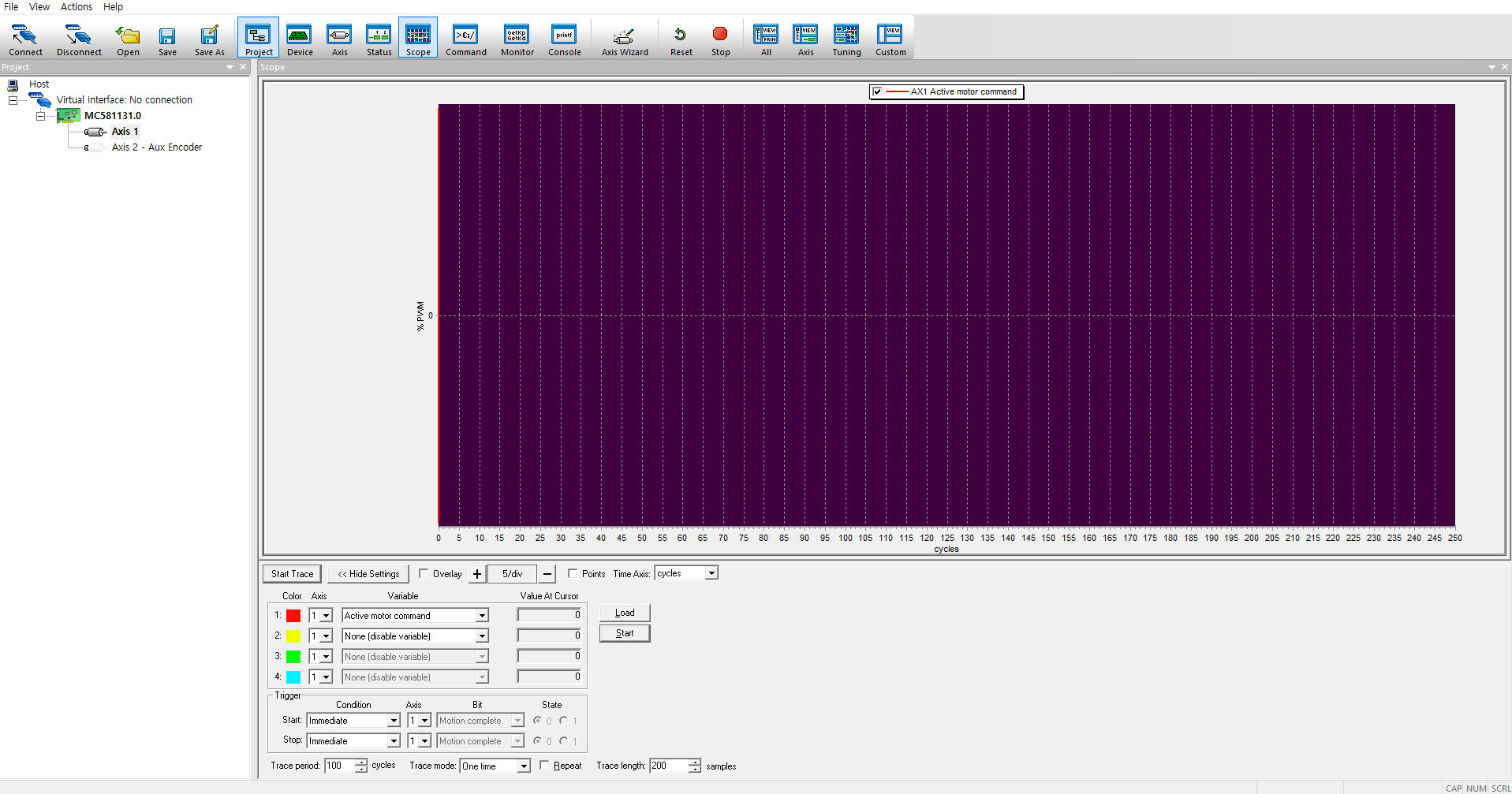
Pro-Motion's Scope feature connects directly to the Magellan IC's hardware trace capability, simultaneously capturing up to 4 motion registers (from around 100 options such as motor command, commanded position, actual position, and position error) at up to 20 kHz. Without a separate oscilloscope or data acquisition equipment, you can, for example, experiment directly by watching a graph to see how much acceleration can be increased while staying within the current limit.
Position loop gain tuning also follows a set procedure. After issuing a small step-move command, if the response waveform oscillates and overshoots the target (underdamped), Kd is increased; conversely, if it settles too slowly (overdamped), Kd is decreased — the goal is to find the ‘critically damped’ response. From there, Ki is adjusted for precision, and finally acceleration/velocity feedforward (Aff/Vff) is tuned to further reduce following error during the acceleration and velocity phases, achieving precise position control that settles within a few milliseconds.
Runs Without a Host PC — Auto-Run Scripts
A completed motion sequence can be written as a human-readable text script and downloaded into the drive's own memory. Once downloaded, the drive runs the script on its own even after disconnecting from the host PC, so the finished product never needs a PC permanently attached — simplifying system configuration and cost. Parameters such as repeat count, speed, and travel distance can be easily edited within the script, and log messages can be output during execution for debugging.
When Something Goes Wrong — Built-in Troubleshooting Guide
| Symptom | Possible Cause & Response |
|---|---|
| Motor not responding | Check the Operating Mode setting — re-check/re-enable in the Axis Control Window |
| Overvoltage event | Regenerative energy during deceleration raises voltage — lower the deceleration rate or use the shunt function, or add power supply capacitance |
| Undervoltage event | The power supply cannot deliver the required current quickly enough — increase power supply capacity or ease the acceleration rate |
| Overcurrent event | Voltage rise from abrupt deceleration — lower the deceleration rate or use the shunt function |
| Motion error event | The difference between commanded and actual position exceeded a threshold — check for axis binding, re-tune the position loop, or ease the profile speed |
| Communication error | Check whether the serial cable runs close to motor/coil wiring; lower the baud rate if needed |